Trojan:DELF/KF is a Windows-targeting trojan originally written in Borland Delphi, a programming environment favored by malware authors for its ability to compile compact executables with minimal dependencies. First catalogued in the mid-to-late 2000s, this trojan family has spawned numerous variants that share common infrastructure and behavioral patterns. While not as sophisticated as modern ransomware or APT toolkits, DELF/KF remains a persistent threat because of its simplicity, small footprint, and effectiveness at establishing a backdoor on compromised systems for follow-on attacks.
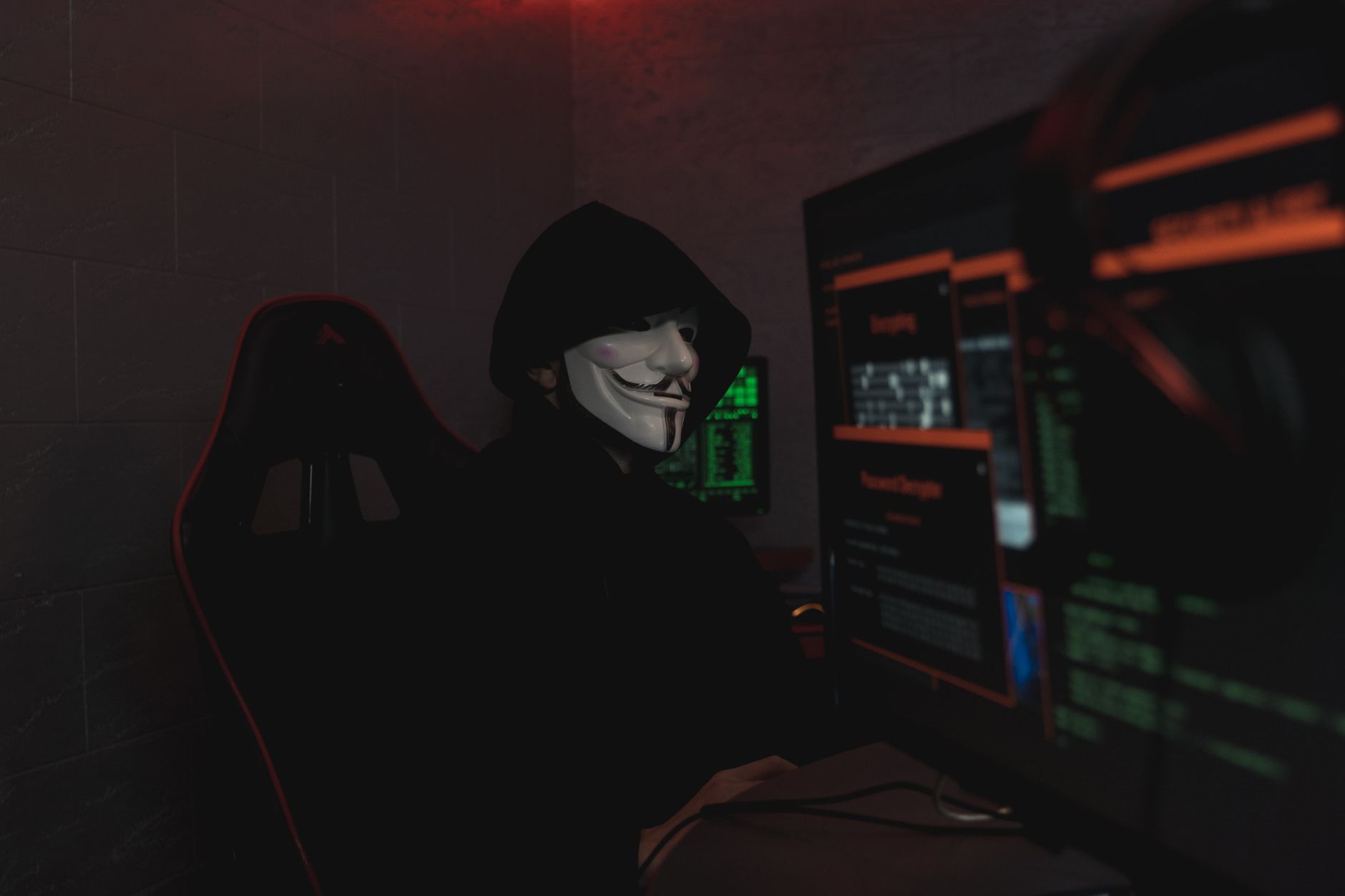
The "DELF" designation refers to the Delphi language fingerprint, and "KF" identifies a specific variant cluster within the broader DELF family. Infections typically manifest as unexpected network traffic, sluggish system performance, disabled security software, and the appearance of unknown processes or scheduled tasks. Because Delphi-compiled binaries can vary widely in size and structure, antivirus detection can be inconsistent, especially for freshly recompiled samples with slight code modifications.
Threat Profile
| Attribute | Details |
|---|---|
| Family | Trojan:DELF (Borland Delphi-based trojan family) |
| Variant | KF cluster |
| Aliases | W32/Delf.KF, Trojan.Win32.Delf.kf, Backdoor:Win32/Delf, TROJ_DELF.KF (varies by vendor) |
| Platform | Windows XP through Windows 11 (32-bit and 64-bit) |
| Discovered | Mid-to-late 2000s (exact date varies by variant) |
| Distribution | Pirated software bundles, malicious email attachments, exploit kits, fake codec installers, peer-to-peer networks |
| Persistence Mechanisms | Registry Run keys, scheduled tasks, modified Windows services, Startup folder entries |
| Primary Capabilities | Backdoor access, remote command execution, file download/upload, keylogging (some variants), process injection |
| Typical Payload Size | 80–350 KB (Delphi executables; varies with embedded resources) |
| Common Artifacts | Random-named .exe in %APPDATA% or %TEMP%, mutex objects, registry modifications under HKCU\Software\Microsoft\Windows\CurrentVersion\Run |
| Network Behavior | Outbound connections to hard-coded or DGA-generated command-and-control domains, often on non-standard ports; HTTP polling or raw TCP sessions |
| Removal Difficulty | Moderate—most variants do not employ rootkit techniques, but persistence mechanisms can be layered and process injection complicates clean termination |
How It Spreads
Trojan:DELF/KF does not replicate itself like a worm; it requires some form of user interaction or exploitation to gain a foothold. The most common infection vector is software piracy: cracked games, pirated productivity suites, and "keygens" bundled with popular applications frequently include DELF variants as secondary payloads. Users searching for free versions of expensive software often download executable archives from file-sharing sites, torrent trackers, or sketchy download portals where the malware is silently packaged alongside or in place of the desired application.
Email-based distribution is also prevalent. Attackers send messages with vague subject lines ("Invoice attached," "Scanned document," "Order confirmation") and attach ZIP files containing the trojan disguised as a PDF, invoice, or document. Double-clicking the executable—especially if Windows is configured to hide file extensions—launches the infection. Once the file runs with user privileges, DELF/KF begins its installation routine, often disabling User Account Control prompts by exploiting older privilege-escalation bugs or simply relying on users clicking "Yes" without reading.
Other distribution channels include:
- Malicious advertisements (malvertising): Exploit kits hosted on compromised ad networks attempt drive-by downloads when users visit legitimate websites.
- Fake codec or Flash Player updates: Pop-ups claiming "Your video player is out of date—click here to update" deliver DELF variants instead.
- Peer-to-peer networks: Trojans masquerade as popular movie files, music albums, or software on Gnutella, eDonkey, and similar networks.
- USB and removable media: Earlier variants could spread via autorun.inf on USB sticks, though this vector is less effective on modern Windows versions with autorun disabled by default.
- Bundled with other malware: Droppers and loaders (often part of pay-per-install schemes) include DELF/KF as one component in a multi-malware package.
What It Does On Your Machine
Once executed, Trojan:DELF/KF typically copies itself to a semi-random location in the user profile—commonly a subfolder under %APPDATA% or %LOCALAPPDATA%, sometimes with a GUID-style folder name or a name mimicking a legitimate Windows component (e.g., svchost32, winlogon). The binary often has a benign-sounding filename or a randomly generated string to evade casual inspection. Delphi executables compile to single standalone files, so the trojan does not require additional DLLs, making deployment straightforward.
Persistence is established through multiple redundant mechanisms. The trojan writes a registry entry under HKEY_CURRENT_USER\Software\Microsoft\Windows\CurrentVersion\Run or RunOnce to ensure the malware launches at every user logon. Some variants also create or modify a Windows service or scheduled task, allowing the trojan to restart even if the user kills the process manually. Registry keys may appear with innocuous names like "Windows Update Agent" or random alphanumeric strings. Scheduled tasks are often named similarly and configured to run at logon, on idle, or at regular intervals with SYSTEM-level privileges if the trojan successfully escalates.
DELF/KF operates as a backdoor, meaning its primary purpose is to provide remote access to the infected machine. After achieving persistence, the trojan initiates contact with a command-and-control (C2) server—either a hard-coded IP address or a domain name. The communication protocol is usually custom binary over raw TCP sockets or simple HTTP GET/POST requests. Older DELF variants used IRC channels for C2, but KF-cluster samples typically use direct server connections. The trojan transmits basic system information (OS version, username, computer name, IP address) to the C2 and then awaits commands.
Capabilities vary by specific build, but common functions include downloading and executing additional malware, uploading files from the victim's system (document theft), executing arbitrary shell commands, capturing screenshots, and logging keystrokes. Some DELF/KF variants include a rudimentary keylogger that writes typed characters to a hidden log file, later exfiltrated to the attacker. The trojan may also disable or interfere with antivirus and firewall software by terminating security processes or modifying their registry settings, making removal more difficult and prolonging the infection.
Manual Removal — Step by Step
Disconnect from the network immediately
Unplug the Ethernet cable or turn off Wi-Fi to sever the trojan's connection to its command server. This prevents further commands from being executed, stops data exfiltration in progress, and reduces the risk of lateral movement if you're on a shared network. Do not reconnect until the system is verified clean.
Boot into Safe Mode with Networking
Restart the computer and press F8 (or Shift+F8 on newer systems) during boot to access the Advanced Boot Options menu. Select "Safe Mode with Networking." This loads only essential drivers and services, preventing most malware—including DELF/KF—from launching automatically. Safe Mode also makes it easier to terminate malicious processes and delete files that would otherwise be locked.
Open Task Manager and identify the malicious process
Press Ctrl+Shift+Esc to launch Task Manager. Switch to the "Details" tab (or "Processes" on older Windows) and sort by "Image Name" or CPU usage. Look for unfamiliar executables with random names or misspellings of legitimate Windows processes (like "svchost32.exe" instead of "svchost.exe"). Note the process ID and the path listed in the "Command line" column. Right-click and choose "End Task." If the process immediately restarts, it's likely protected by a scheduled task or service—you'll disable those next.
Remove persistence mechanisms—registry Run keys
Press Win+R, type regedit, and press Enter. Navigate to HKEY_CURRENT_USER\Software\Microsoft\Windows\CurrentVersion\Run and HKEY_LOCAL_MACHINE\SOFTWARE\Microsoft\Windows\CurrentVersion\Run. Look for entries pointing to executables in %APPDATA%, %LOCALAPPDATA%, or %TEMP% with suspicious names. Right-click any matching entry and choose "Delete." Also check the RunOnce keys in the same locations. Close Registry Editor when finished.
Disable or delete malicious scheduled tasks
Press Win+R, type taskschd.msc, and press Enter to open Task Scheduler. Expand "Task Scheduler Library" and review the list. Look for tasks with random names, tasks that run from %APPDATA%, or tasks created recently around the time of infection. Right-click suspicious tasks and choose "Disable" (safer) or "Delete." Pay special attention to tasks configured to run at logon or on a recurring interval with no clear purpose.
Locate and delete the trojan's executable and containing folder
Using File Explorer, navigate to the paths you noted from Task Manager or the registry entries (typically C:\Users\<YourName>\AppData\Local\{GUID}\ or AppData\Roaming\). Delete the entire folder. If Windows says the file is in use, reboot into Safe Mode again or use a tool like Unlocker. Also check %TEMP%, the Startup folder (shell:startup), and C:\ProgramData for additional copies. Empty the Recycle Bin when done.
Run a full scan with reputable anti-malware software
Download and install Malwarebytes Free (from malwarebytes.com) or another trusted scanner. Update the definitions, then run a full system scan. Malwarebytes is particularly effective against DELF variants and can detect remnants, rootkit hooks, or secondary infections dropped by the trojan. Quarantine or delete all detected threats. Follow up with a scan using your primary antivirus (ensure definitions are current) for a second opinion.
Reset browsers if you suspect credential theft or adware
If the trojan included keylogging or browser-hijacking components, reset your browsers to default settings. In Chrome, Edge, or Firefox, go to Settings → Reset settings (or Refresh Firefox). This removes malicious extensions, clears altered homepages, and restores default search engines. Clear all cookies and cached data to eliminate session hijacking risks.
Change passwords for sensitive accounts from a clean device
If the infected machine was used to access email, banking, or other critical accounts, assume those credentials are compromised. Use a different, known-clean computer or your smartphone to change passwords immediately. Enable two-factor authentication on all accounts that support it. Monitor financial accounts for unauthorized transactions.
Reboot normally and verify the system is clean
Restart the computer in normal mode and reconnect to the network. Open Task Manager and confirm no suspicious processes are running. Check the registry Run keys and Task Scheduler again. Run one more quick scan with Malwarebytes or your AV. If the system remains stable and scans come back clean, the removal was successful. Continue monitoring for a few days—if symptoms return, consider professional help or a clean Windows reinstall.
Prevention
- Avoid pirated software and key generators. The overwhelming majority of DELF/KF infections originate from cracked programs and "free" downloads of commercial software. Pay for legitimate licenses or use reputable free alternatives (LibreOffice instead of pirated Microsoft Office, GIMP instead of pirated Photoshop). The money saved is not worth the cost of remediation and potential data loss.
- Keep Windows and all software up to date. Enable automatic updates for Windows, browsers, Java, Adobe products, and other commonly exploited applications. Many DELF infections leverage outdated vulnerabilities in browsers or plugins. Patch management closes these doors before attackers can walk through them.
- Deploy and maintain reputable antivirus and anti-malware software. Use a well-known AV solution (Windows Defender is adequate if kept current; third-party options include Bitdefender, Kaspersky, ESET) and supplement with periodic Malwarebytes scans. Enable real-time protection and heuristic analysis. Keep definitions updated automatically.
- Be skeptical of email attachments and links from unknown senders. Do not open attachments unless you were expecting them and can verify the sender through a separate communication channel (not by replying to the suspicious email). Executable files, ZIP archives, and Office documents with macros are high-risk. When in doubt, delete.
- Configure Windows to show file extensions. In File Explorer, go to View → Options → View tab and uncheck "Hide extensions for known file types." This makes it much harder for trojans disguised as "Invoice.pdf.exe" to fool you—you'll see the
.exeextension and know it's not a document. - Use a standard user account for daily tasks. Create a separate administrator account for installing software and system changes, and use a standard (non-admin) account for web browsing, email, and general work. Many trojans require administrative privileges to install persistence mechanisms; running as a standard user adds a layer of defense.
- Enable a firewall and consider advanced threat protection. Windows Firewall should always be active. For businesses or high-risk users, consider a hardware firewall or next-gen endpoint protection with behavioral analysis and sandboxing capabilities. These solutions can detect and block DELF/KF even if signatures are not yet available.
- Educate everyone who uses your computers. Family members, employees, and colleagues need to understand basic security hygiene—recognizing phishing, avoiding sketchy downloads, and reporting suspicious behavior immediately. A single careless click can compromise an entire network; awareness is the strongest preventive measure.
Bring It In
Manual removal of Trojan:DELF/KF is effective for users comfortable with Task Manager, Registry Editor, and Safe Mode, but it's easy to miss a persistence mechanism or overlook a secondary payload. If the trojan keeps coming back, if your antivirus won't install or update, or if you're simply not confident working in the registry, bring your computer to Computer Repair Roswell. We'll perform a thorough malware analysis, eliminate all traces of the infection, patch vulnerabilities, and verify your system is truly clean—usually same-day.
Our shop is located at 1234 Canton Street in Roswell, Georgia, and we're open six days a week for walk-ins and appointments. Call us at (770) 637-1435 to describe your symptoms and get a quote. We service both PCs and Macs, handle everything from single-computer home infections to small-business network compromises, and we'll give you straight answers about whether your data is at risk. Don't let a trojan linger—every day it remains active is another opportunity for attackers to steal credentials, install ransomware, or recruit your machine into a botnet. Let's get it fixed right.