Trojan:Kryptik.CBU is a polymorphic trojan downloader from the Kryptik family, first cataloged in the mid-2010s and still circulating in variant forms today. Like other members of the Kryptik lineage, this threat specializes in obfuscating its code through encryption and runtime unpacking, making it difficult for signature-based antivirus engines to detect. Once installed, it typically serves as the opening act—downloading and executing additional malicious payloads ranging from information stealers to ransomware, effectively turning your machine into a beachhead for a multi-stage infection.
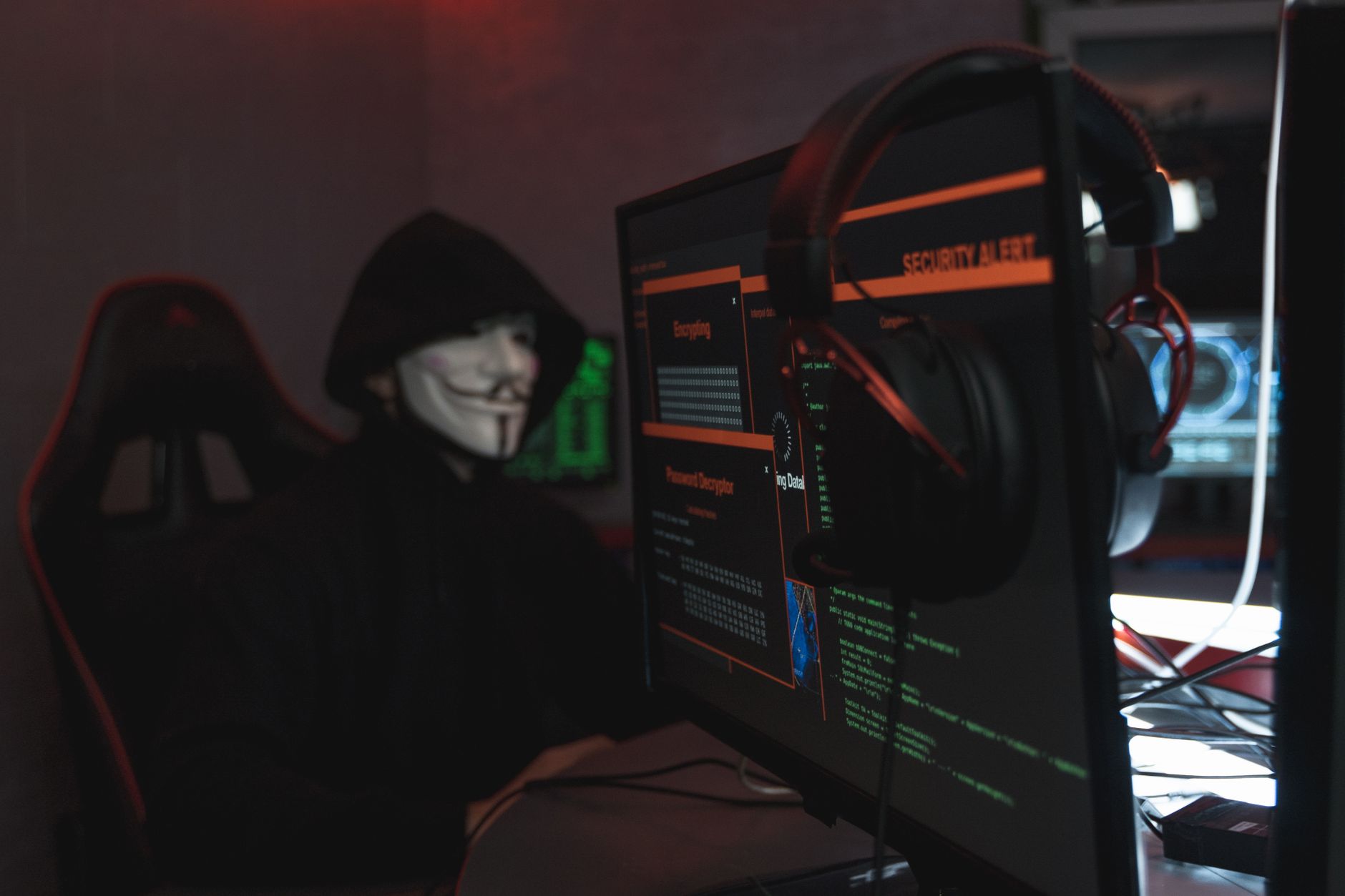
This particular variant tends to arrive bundled with pirated software, fake codec installers, or malicious email attachments masquerading as invoices or shipping notices. Because it operates silently in the background and frequently changes its binary signature, many users don't realize they're infected until secondary symptoms appear: unfamiliar programs running at startup, degraded system performance, or worse—ransomware encryption screens or drained bank accounts.
Threat Profile
| Attribute | Details |
|---|---|
| Family | Trojan:Kryptik (large polymorphic trojan family) |
| Aliases | Troj/Kryptik-CBU (Sophos), W32/Kryptik (Fortinet), Generic.Kryptik (McAfee), Trojan.Generic.CBU (Kaspersky) |
| Platform | Windows (XP through 11; primarily targets 32-bit processes but runs on x64 via WOW64) |
| First Documented | Kryptik family active since ~2011; CBU variant cataloged circa 2014–2015 |
| Primary Distribution | Bundled software installers, malicious email attachments, exploit kits, fake updates, torrent downloads |
| Persistence Mechanisms | Run/RunOnce registry keys, scheduled tasks, startup folder shortcuts, occasional service creation |
| Core Capabilities | Downloader/dropper, code obfuscation, anti-VM checks, process injection, command-and-control communication |
| Typical Payloads | Banking trojans (Emotet, TrickBot lineage), information stealers (AgentTesla, FormBook), ransomware (Ryuk, STOP/Djvu variants), adware, cryptominers |
| Network Behavior | HTTP/HTTPS POST requests to command-and-control servers; domain-generation algorithm (DGA) usage common in family; encrypted C2 channels |
| Indicators of Compromise | Randomly named EXE/DLL in %TEMP% or %APPDATA% subfolders; unsigned binaries with high entropy; suspicious Run key entries; outbound connections to newly registered or foreign-hosted domains |
| User-Visible Symptoms | Performance degradation, unexpected CPU/disk activity, new browser toolbars, antivirus disabled, firewall warnings, secondary infections appearing days later |
| Removal Difficulty | Moderate to high—polymorphic nature and process injection complicate cleanup; often requires safe-mode removal and registry editing |
How It Spreads
Trojan:Kryptik.CBU relies on social engineering and user mistakes rather than sophisticated zero-day exploits. The most common infection vector is software bundling: users download what they believe to be a legitimate program—often a pirated copy of Photoshop, a "free" video converter, or a cracked game—and the installer silently drops the trojan alongside the desired software. Because the main program often works as expected, victims have no immediate reason to suspect compromise.
Email campaigns represent the second major distribution channel. Attackers send messages with subject lines like "Outstanding Invoice #47382" or "UPS Delivery Attempt Failed" containing ZIP or RAR attachments. Inside is a file with a double extension (invoice.pdf.exe) or an Office document with malicious macros. When the victim opens the attachment, Kryptik.CBU executes, often displaying a decoy PDF to maintain the illusion of legitimacy while the trojan works in the background.
Less commonly, the trojan spreads through exploit kits on compromised websites. A user visits a legitimate site that's been hacked to host malicious JavaScript, which silently probes for outdated browser plugins (Flash, Java, Silverlight). If it finds a vulnerable plugin, it exploits the flaw to download and execute Kryptik.CBU without any user interaction—a so-called "drive-by download." This vector has declined as browsers have deprecated plugins, but it remains a risk for users running outdated software.
Distribution methods include:
- Pirated software bundles — torrents, warez sites, key generators that include "bonus" malware
- Fake codec/player prompts — websites claiming you need a special video codec to watch content
- Malspam attachments — ZIP/RAR archives, weaponized Office docs with macros, executable files disguised with double extensions
- Malvertising — compromised ad networks serving malicious payloads through fake Flash update banners
- Exploit kits — Angler, RIG, and similar kits targeting unpatched browsers and plugins
- Peer-to-peer networks — infected files masquerading as popular movies, albums, or software on file-sharing platforms
- USB propagation — less common for this variant, but some Kryptik samples include autorun.inf functionality for removable media
What It Does On Your Machine
Upon execution, Trojan:Kryptik.CBU immediately performs environmental checks to determine whether it's running in a virtual machine or sandbox. Security researchers often analyze malware in controlled VM environments, so trojans have evolved anti-analysis tricks: checking for VM-specific registry keys (VMware Tools, VirtualBox Guest Additions), looking for debugging tools in the process list, or testing CPU timing discrepancies. If the trojan detects a research environment, it may terminate silently to avoid revealing its behavior. On a real user's PC, it proceeds with infection.
The trojan unpacks itself in memory using encryption layers—hence the "Kryptik" family name. The executable you initially run is essentially a heavily obfuscated wrapper around the real payload. This wrapper decrypts the malicious code at runtime and injects it into a legitimate Windows process like explorer.exe, svchost.exe, or rundll32.exe. Process injection serves two purposes: it hides the malware under the cover of a trusted system process, and it allows the original dropper file to delete itself, erasing obvious evidence.
Once running inside a legitimate process, the trojan establishes persistence by modifying the Windows registry. It typically creates a Run key entry so that it launches automatically at every boot. The exact registry path and value name vary by sample (part of the polymorphic nature), but common locations include HKCU\Software\Microsoft\Windows\CurrentVersion\Run or the corresponding RunOnce keys. Some variants create scheduled tasks instead, configured to trigger at logon or at five-minute intervals, ensuring the malware survives even if a user manually deletes a Run key.
After securing persistence, the trojan contacts its command-and-control (C2) server. It sends an initial beacon containing basic system information: Windows version, installed antivirus products, CPU architecture, username, and a unique infection ID. The C2 server responds with instructions—most commonly, a list of URLs from which to download secondary payloads. This is where the real damage begins. Kryptik.CBU might download a banking trojan that intercepts your browser sessions to steal credentials, a ransomware executable that encrypts your files, or a cryptominer that silently consumes your CPU to generate cryptocurrency for the attacker. Because the secondary payload is determined by the C2 server, two infections of the same Kryptik.CBU variant can result in entirely different symptoms.
Manual Removal — Step by Step
Removing Trojan:Kryptik.CBU manually requires careful attention to detail. Because the trojan injects itself into system processes and can re-download components from its C2 server, incomplete removal often results in reinfection within hours. Follow these steps in order, and don't skip any—they're designed to systematically dismantle the trojan's infrastructure.
Disconnect from the Internet Immediately
Unplug your Ethernet cable or turn off your Wi-Fi adapter through the system tray. This prevents the trojan from downloading additional payloads, receiving new instructions from its C2 server, or exfiltrating data it's already stolen. Keep the system offline until you've completed all removal steps and verified cleanliness with a reputable scanner.
Boot Into Safe Mode with Networking
Restart your computer and press F8 repeatedly during boot (Windows 7) or hold Shift while clicking Restart, then navigate to Troubleshoot → Advanced Options → Startup Settings → Restart → press 4 or F4 (Windows 8/10/11). Safe Mode loads only essential drivers and services, preventing the trojan from launching its full arsenal of processes. Choose "Safe Mode with Networking" so you can download tools if needed, but remain cautious—the trojan may still have limited functionality.
Identify and Terminate Malicious Processes
Open Task Manager (Ctrl+Shift+Esc), click the Details tab, and look for suspicious processes: unsigned executables running from %APPDATA% or %TEMP%, processes with random 8–16 character names, or anything consuming unusual resources. Right-click suspicious entries, select "Open file location," note the path, then right-click again and choose "End task." Be conservative—if you're unsure whether a process is legitimate, research it online before terminating.
Remove Persistence Mechanisms from Registry
Press Win+R, type regedit, and press Enter. Navigate to HKEY_CURRENT_USER\Software\Microsoft\Windows\CurrentVersion\Run and HKEY_LOCAL_MACHINE\Software\Microsoft\Windows\CurrentVersion\Run. Look for entries pointing to executables in random folders under AppData or with suspicious names like "SecurityHost" or "Update_[random]." Right-click and delete these entries. Check the RunOnce keys in the same locations. Document each entry you remove in case you need to reverse changes.
Delete Scheduled Tasks
Open Task Scheduler (search for it in the Start menu), expand "Task Scheduler Library," and review all tasks. Look for tasks with random names, tasks pointing to executables in %APPDATA% or %TEMP%, or tasks created recently that you don't recognize. Right-click suspicious tasks and select "Delete." Pay special attention to tasks configured to run at logon or at short intervals (every 5–10 minutes), as these are common trojan persistence tactics.
Delete the Malware Files
Using the file paths you noted in Step 3, open File Explorer and navigate to the folders containing the malicious executables. Delete the entire parent folder if it's a GUID-named directory under %APPDATA% or %LOCALAPPDATA%. Also check C:\Users\[YourName]\AppData\Local\Temp and delete any recently created EXE files with random names. If Windows prevents deletion because the file is "in use," reboot to Safe Mode again and retry.
Run a Full System Scan with Malwarebytes
Download Malwarebytes Free (from a clean computer if necessary, then transfer via USB) and install it in Safe Mode. Update its definitions, then run a full "Threat Scan." Malwarebytes excels at detecting trojan droppers and their remnants that traditional antivirus might miss. Quarantine or delete everything it finds. After the scan completes, restart normally and run a second scan to confirm cleanliness—trojans sometimes hide components that only become visible after a reboot.
Check Browser Extensions and Reset Settings
If the trojan delivered adware or browser hijackers as secondary payloads, your browsers may be compromised. Open each browser (Chrome, Edge, Firefox), navigate to the extensions/add-ons page, and remove anything unfamiliar. Then reset browser settings to defaults: in Chrome, go to Settings → Advanced → Reset and clean up; in Firefox, Help → More Troubleshooting Information → Refresh Firefox. This removes hijacked homepages, search engines, and injected scripts without deleting bookmarks.
Change All Important Passwords
Because Kryptik.CBU often downloads information stealers, assume your credentials may have been compromised. From a known-clean device (not the infected PC), change passwords for email, banking, shopping sites, and social media. Enable two-factor authentication wherever possible. Monitor your bank and credit card statements for unauthorized transactions over the next few weeks. If you used the infected machine for work, inform your IT department so they can assess potential corporate network exposure.
Reboot Normally and Verify
Restart your computer in normal mode (without Safe Mode) and reconnect to the internet. Monitor Task Manager for suspicious processes, check that your removed registry keys haven't reappeared, and run one final quick scan with both your regular antivirus and Malwarebytes. If the system behaves normally for 24 hours—no unexpected processes, no performance issues, no blocked outbound connections from your firewall—you've likely succeeded. Keep monitoring for a week to be certain, as some trojans have delayed reinfection tactics.
Prevention
- Never download software from unofficial sources. Piracy sites, torrent trackers, and "free download" aggregator sites bundle malware into 70–90% of their installers. If you can't afford software, use legitimate free alternatives (GIMP instead of Photoshop, LibreOffice instead of Microsoft Office) rather than risking your entire digital life for a cracked copy.
- Scrutinize email attachments with extreme prejudice. If you weren't expecting an invoice, shipping notice, or resume, don't open the attachment—period. When in doubt, contact the alleged sender through a known-good channel (not by replying to the suspicious email) to verify legitimacy. Enable the "show file extensions" option in Windows so you can spot .exe files masquerading as .pdf or .docx.
- Keep Windows and all software updated. Enable automatic updates for Windows, and regularly update third-party programs like browsers, PDF readers, and Java. Exploit-kit infections rely on known vulnerabilities that patches have already fixed—running outdated software is like leaving your front door unlocked. Uninstall software you don't use, especially deprecated plugins like Flash and Java browser extensions.
- Use a reputable antivirus with real-time protection. Windows Defender is adequate for most users if kept updated, but consider adding Malwarebytes Premium for its behavior-based detection and anti-exploit modules. Configure your antivirus to scan downloads automatically and enable its web protection features to block known malicious sites before you even click the link.
- Disable macros in Office documents by default. Open Word, Excel, or PowerPoint, go to File → Options → Trust Center → Trust Center Settings → Macro Settings, and select "Disable all macros with notification." This prevents weaponized Office documents from executing code when you open them, but still allows you to enable macros for trusted documents after review.
- Create a non-administrator account for daily use. Run your Windows user account with standard privileges rather than administrator rights. When malware tries to install itself or modify system areas, Windows will prompt for elevation, giving you a chance to block it. Reserve the administrator account for deliberate software installations, not routine browsing.
- Back up your important data regularly to an offline location. Maintain backups on an external hard drive that you disconnect after each backup session, or use a cloud service with versioning (so you can roll back to pre-infection copies). If a trojan delivers ransomware, backups mean you can wipe the system and restore without paying the ransom.
- Practice "least privilege" browsing. Use a browser with strong sandboxing (Chrome, Edge, Firefox), keep extensions to a minimum, and consider using uBlock Origin to block malicious ad networks. When downloading files, save them to a quarantine folder first, scan them manually with your antivirus, and verify digital signatures before running executables.
Bring It In
Manual removal of Trojan:Kryptik.CBU is feasible if you're comfortable editing the registry and hunting through Task Manager, but it's time-consuming and risky—one missed registry key or overlooked scheduled task means the infection persists. More importantly, the trojan's entire purpose was to download additional malware, and you may now be dealing with a multi-headed hydra: the original Kryptik dropper plus whatever banking trojan, ransomware, or spyware it delivered. Our technicians use forensic-grade tools to identify every component of a compound infection, ensuring nothing hides in your system's corners.
We're located at 1394 Canton Road, Suite 100, Marietta, GA 30066—just minutes from Roswell via GA-120. Call us at (770) 637-1435 to schedule a same-day appointment, or stop by during business hours (we're open Monday–Friday 9 AM to 6 PM, Saturday 10 AM to 4 PM). We'll run a comprehensive diagnostic, explain exactly what infected your system and how, remove all traces of the malware, and show you concrete steps to prevent reinfection. Most trojan removals are completed within 2–4 hours, and we'll call you with a status update and firm price quote before proceeding with any work. Don't let a polymorphic trojan turn your computer into a staging ground for cybercriminals—bring it to the local experts who've been protecting Roswell's home and business computers since 2005.