The "Payment Related Document In Secure PDF Format" email scam is a phishing campaign that targets business users and individuals by masquerading as legitimate payment notifications. These emails typically claim to contain invoices, receipts, or payment confirmations in "secure PDF" format, creating urgency around financial matters to trick recipients into downloading malicious attachments or clicking dangerous links. Unlike traditional malware that spreads through system vulnerabilities, this threat relies entirely on social engineering—exploiting human trust and the routine nature of business correspondence to bypass technical defenses.
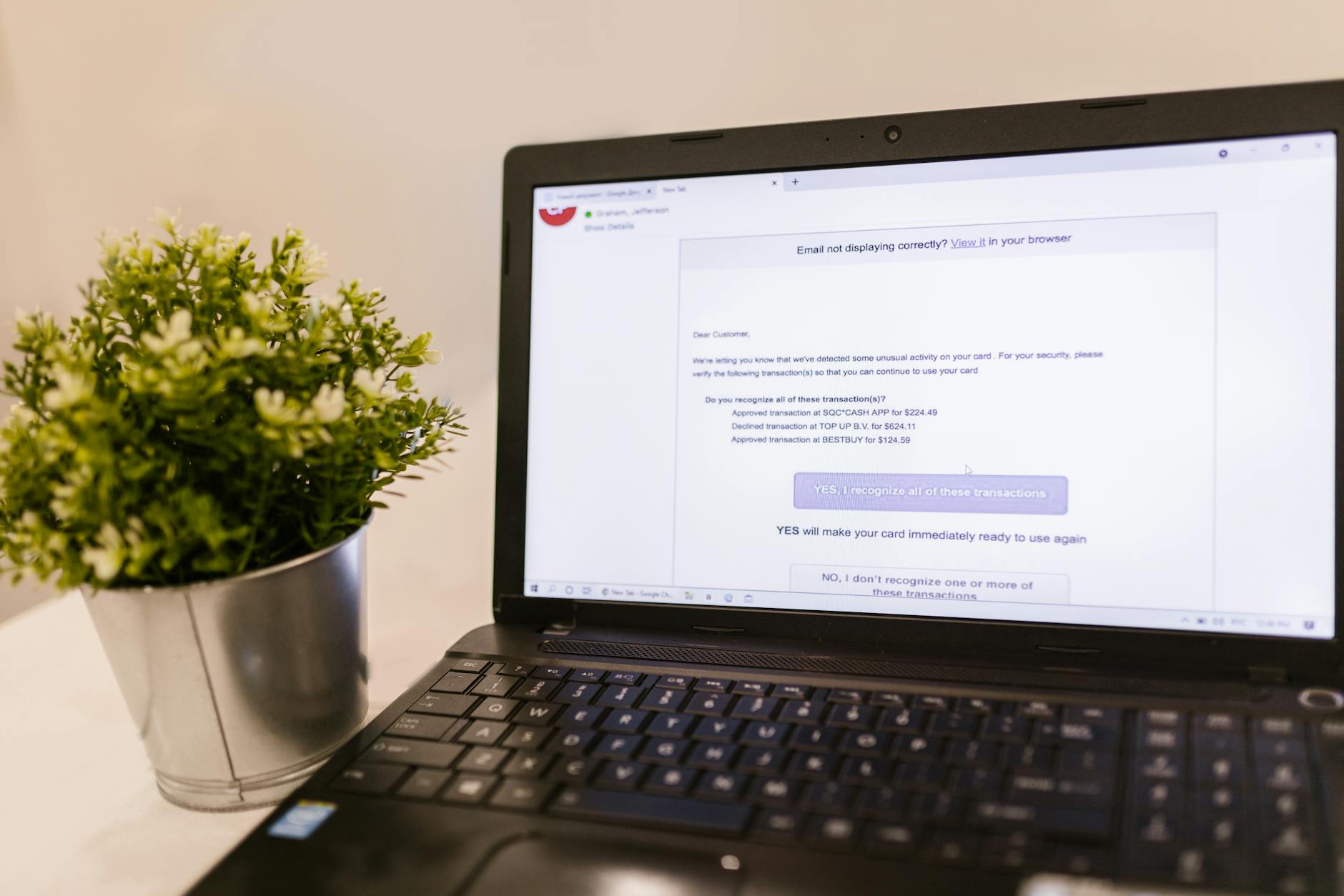
What makes this scam particularly dangerous is its professional appearance and context-appropriate timing. The emails often reference actual company names, use corporate-style formatting, and arrive during business hours when users are most likely to be processing legitimate financial documents. Once a victim interacts with the malicious content, the consequences range from credential theft and banking fraud to full system compromise through downloaded trojans or ransomware.
Threat Profile
| Attribute | Details |
|---|---|
| Threat Type | Phishing scam / Social engineering attack |
| Aliases | "Secure PDF Payment Notification", "Payment Document Attached", variations with company impersonation |
| Target Platform | Platform-agnostic (email-based); payloads may target Windows, macOS, or web browsers |
| First Observed | Campaigns using this template active since 2019; evolves continuously |
| Distribution Method | Mass email campaigns, spear-phishing, compromised business email accounts |
| Primary Objective | Credential harvesting, malware delivery (banking trojans, ransomware), financial fraud |
| Typical Payload | Varies—may deliver Emotet, TrickBot, Agent Tesla, FormBook, or redirect to phishing landing pages |
| Attachment Types | Malicious PDF with embedded links, HTML files disguised as PDFs, ZIP/RAR archives, Office documents with macros |
| Targeted Sectors | Small businesses, accounting departments, HR personnel, individual contractors |
| Spoofed Senders | Payment processors (PayPal, Square), banks, utilities, suppliers, business partners |
| Urgency Tactics | "Payment overdue", "Action required within 24 hours", "Secure document expires soon" |
| Detection Difficulty | High—emails often pass basic spam filters; relies on user awareness rather than technical detection |
How It Spreads
This scam spreads exclusively through email, leveraging both mass distribution and targeted approaches. Attackers purchase or compile email lists containing business addresses, then craft messages designed to look like routine financial correspondence. The emails typically arrive with subject lines like "Payment Confirmation #[random-number]" or "Invoice Attached – Secure PDF Format," using language that suggests legitimacy and importance without triggering obvious red flags.
The sophistication varies considerably. Basic versions use generic templates with poor grammar and obvious formatting errors. More advanced campaigns employ company logo theft, accurate sender name spoofing, and even reference actual business relationships gleaned from LinkedIn or company websites. Some attackers compromise legitimate business email accounts through previous phishing successes, then use those trusted addresses to send scam emails to the victim's contact list—making the messages far more convincing.
Common distribution characteristics include:
- Spoofed "From" addresses that appear to come from known payment processors, banks, or business partners (though the actual sending domain differs when examined closely)
- Attachment or link-based delivery with the malicious content presented as a secure document requiring download or viewing through a web portal
- Time-sensitive language designed to bypass critical thinking—phrases like "payment declined," "immediate action required," or "account suspension imminent"
- Business-hours timing with emails arriving during typical working hours (9 AM–5 PM local time) when users are processing legitimate financial documents
- Mobile targeting where the scam relies on smaller smartphone screens making it harder to spot URL inconsistencies or sender address discrepancies
- Reply-to address manipulation where the visible sender looks legitimate but replies go to a completely different domain controlled by attackers
- Seasonal spikes around tax season, end-of-quarter periods, and holidays when financial activity peaks
What It Does On Your Machine
The actual impact depends entirely on what payload the scam delivers, but the attack chain typically unfolds in stages. If you click a link in the email, you're usually redirected to a convincing fake login page designed to harvest your credentials. These phishing sites may impersonate Microsoft 365, Google Workspace, banking portals, or payment processors. Every field you fill in—email, password, security questions, even two-factor codes—gets transmitted directly to the attackers. Many of these sites employ real-time relay techniques, meaning an attacker is simultaneously using your credentials to log into the real service while you type, bypassing some forms of two-factor authentication.
If you download and open an attachment, the consequences escalate. PDFs in these scams often aren't actually PDFs—they're HTML files renamed with a .pdf extension, or legitimate PDFs embedded with malicious links. When opened, they may display convincing-looking payment documents while quietly executing scripts that download secondary payloads. ZIP or RAR archives typically contain executable files disguised as documents (using tricks like "Invoice_2024.pdf.exe" where Windows hides the .exe extension by default). Office documents leverage macro-enabled features, displaying fake security warnings that instruct users to "Enable Content" or "Enable Editing," which then executes embedded VBA code.
Once malware executes, the infection trajectory varies by payload. Banking trojans like TrickBot or Emotet establish persistence through registry modifications and scheduled tasks, then begin monitoring browser activity to steal banking credentials and session cookies. Information stealers such as Agent Tesla or FormBook log keystrokes, capture screenshots, and exfiltrate stored passwords from browsers, email clients, and FTP programs. Some campaigns deliver ransomware directly, encrypting files within hours. Others install remote access trojans that grant attackers complete control over your system, allowing them to pivot to other machines on your network—a particular concern for business environments.
Manual Removal — Step by Step
Disconnect From Network Immediately
Before doing anything else, physically disconnect your computer from the internet. Unplug the ethernet cable or turn off WiFi through your system settings (not just by clicking the WiFi icon—go into network settings and fully disable it). This prevents any active malware from communicating with command-and-control servers, exfiltrating additional data, or spreading to other devices on your network. If you're on a business network, notify your IT contact immediately.
Change Passwords From a Clean Device
Before touching the infected computer further, use a known-clean device (a different computer, tablet, or smartphone) to change passwords for any accounts you accessed recently—especially email, banking, payment services, and business applications. Enable two-factor authentication if you haven't already. If you entered credentials into what you now suspect was a phishing page, change those passwords first and contact your bank if financial accounts were involved.
Boot Into Safe Mode With Networking
Restart your computer and boot into Safe Mode with Networking (on Windows, hold Shift while clicking Restart, then navigate to Troubleshoot > Advanced Options > Startup Settings > Restart, then press 5 or F5 for Safe Mode with Networking). This loads Windows with minimal drivers and prevents most malware from auto-starting. You'll need networking enabled to download security tools in the next steps.
Identify and Terminate Suspicious Processes
Open Task Manager (Ctrl+Shift+Esc) and look through running processes for anything unfamiliar or oddly named—particularly items running from Temp folders or user AppData directories. Right-click suspicious processes, select "Open file location," then note the full path. If the process is running from an unexpected location and you can identify it as related to your recent email interaction, end the process. Don't delete files yet—just document their locations.
Remove Persistence Mechanisms
Open Registry Editor (type regedit in the Start menu) and navigate to HKEY_CURRENT_USER\Software\Microsoft\Windows\CurrentVersion\Run and HKEY_LOCAL_MACHINE\SOFTWARE\Microsoft\Windows\CurrentVersion\Run. Look for any entries you don't recognize, especially those pointing to files in AppData or Temp folders. Write down their names and paths, then delete the registry values. Next, open Task Scheduler (taskschd.msc), expand the Task Scheduler Library, and look through scheduled tasks for anything suspicious—malware often creates tasks that run at login or every few minutes.
Delete Malicious Files and Folders
Using File Explorer with hidden files visible (View > Hidden Items checked), navigate to the file locations you documented earlier. Common locations include C:\Users\[YourName]\AppData\Local\Temp\, AppData\Roaming\, and AppData\Local\ subfolders. Delete the entire folder containing the malicious executable if it appears to be created specifically for the malware (often a randomly-named GUID folder). Empty your Recycle Bin afterward—malware can sometimes reinfect from there.
Run Multiple Reputable Security Scanners
Download and install Malwarebytes (free version works fine) and run a full Threat Scan—not a quick scan. Let it complete and remove everything it finds. Then download and run a second-opinion scanner like Emsisoft Emergency Kit or HitmanPro. Multiple tools are important because no single scanner catches everything, especially with newer variants. Run Windows Defender's offline scan as well (Windows Security > Virus & threat protection > Scan options > Microsoft Defender Offline scan) which boots to a pre-Windows environment to catch rootkits.
Reset Web Browsers Completely
Many payloads from these scams install browser extensions or modify browser settings to steal credentials. In Chrome, Edge, and Firefox, go into settings and perform a full reset (Chrome: Settings > Reset Settings > Restore settings to their original defaults). Remove any extensions you didn't install yourself. Clear all browsing data including cached images, cookies, and passwords. If a malicious extension installed with administrator privileges, you may need to remove it through Windows' Programs and Features control panel first.
Check Email and Application Account Security
Log into your email account from a clean device (or after completing all other steps) and review recent activity logs. Look for login attempts from unfamiliar locations or IP addresses. Check for forwarding rules that might be sending copies of your emails to attackers (in Gmail: Settings > Forwarding and POP/IMAP; in Outlook: Settings > Mail > Forwarding). Remove any unauthorized rules. Do the same review for any business applications, especially accounting software or payment processors.
Reboot Normally and Verify Clean State
Restart your computer normally (not in Safe Mode) and reconnect to the network. Run one more quick scan with your primary antivirus to confirm nothing reactivated. Monitor Task Manager for the next few days—watch for unexpected CPU usage, network activity when you're not browsing, or processes respawning that you previously ended. If anything seems off, or if you're not completely confident in the cleanup, professional assistance is warranted to ensure complete removal and prevent reinfection.
Prevention
- Verify sender authenticity before acting on any email requesting action. Hover over email addresses to see the actual sending domain—"payments@paypa1.com" (with a number one instead of lowercase L) isn't PayPal. When in doubt, navigate to the service directly through your browser bookmarks rather than clicking email links.
- Scrutinize unexpected financial emails even when they look legitimate. If you weren't expecting an invoice or payment notification, contact the supposed sender through a known phone number or email address (not by replying to the suspicious email). Real companies don't mind verification calls.
- Disable macro execution in Office applications by default. Go into File > Options > Trust Center > Trust Center Settings > Macro Settings and select "Disable all macros with notification." Never enable macros in documents from unknown senders, regardless of what instructions the document displays.
- Configure Windows to show file extensions. In File Explorer, click View > Options > Change folder and search options > View tab, then uncheck "Hide extensions for known file types." This makes it impossible for attackers to disguise executables as PDFs using the double-extension trick.
- Implement email filtering with link and attachment scanning. For businesses, this means proper gateway filtering beyond basic spam detection. For home users, Gmail and Outlook.com offer reasonably good protection, but supplement them by avoiding POP/IMAP access from desktop clients that bypass cloud-based scanning.
- Maintain offline or cloud-versioned backups of critical data. If an email scam delivers ransomware, having recent backups means you can restore without paying. Use the 3-2-1 rule: three copies of data, on two different media types, with one copy offline or offsite.
- Train yourself and employees to recognize urgency manipulation. Legitimate payment processors and banks rarely create artificial urgency. Phrases like "immediate action required" or "expires in 24 hours" are red flags. When you feel rushed by an email, that's precisely when you should slow down and verify.
- Use dedicated credential managers instead of browser password storage. Password managers like Bitwarden or 1Password won't auto-fill credentials on phishing sites the way browsers sometimes do, providing an extra layer of protection against fake login pages that look visually identical to the real thing.
Bring It In
Phishing scams that deliver malware create complex problems that often extend beyond the immediate infection. Even if you successfully remove the payload malware, questions remain: Did attackers access your email contacts? Were documents exfiltrated? Are there backdoors still present that scanners missed? For business owners, the stakes include regulatory compliance—some data breaches trigger mandatory disclosure requirements. Our technicians at 1584 Hembree Road in Roswell handle these situations daily, with forensic-level tools that go deeper than consumer antivirus products.
We'll thoroughly analyze your system for indicators of compromise, check for lateral movement if you're on a business network, and provide documentation for insurance or compliance purposes if needed. Call (770) 202-9535 or stop by our shop Monday through Friday, 10 AM to 6 PM. If your situation involves potential data theft or business email compromise, time matters—the faster we assess the damage, the more options you have for containment. Don't let uncertainty about whether you're "really infected" delay action. We offer free diagnostics to determine the extent of any compromise, and we'll give you straight answers about what happened and what needs to happen next.