Trojan:Win32/Banload.JB is a banking trojan from the Banload family, a long-running malware lineage that specializes in credential theft and financial fraud. This trojan variant targets Windows systems and focuses primarily on intercepting online banking sessions, stealing login credentials, and harvesting payment card information. While the Banload family has been active since the mid-2000s, individual variants like JB continue to circulate through compromised websites, malicious email attachments, and software bundles.
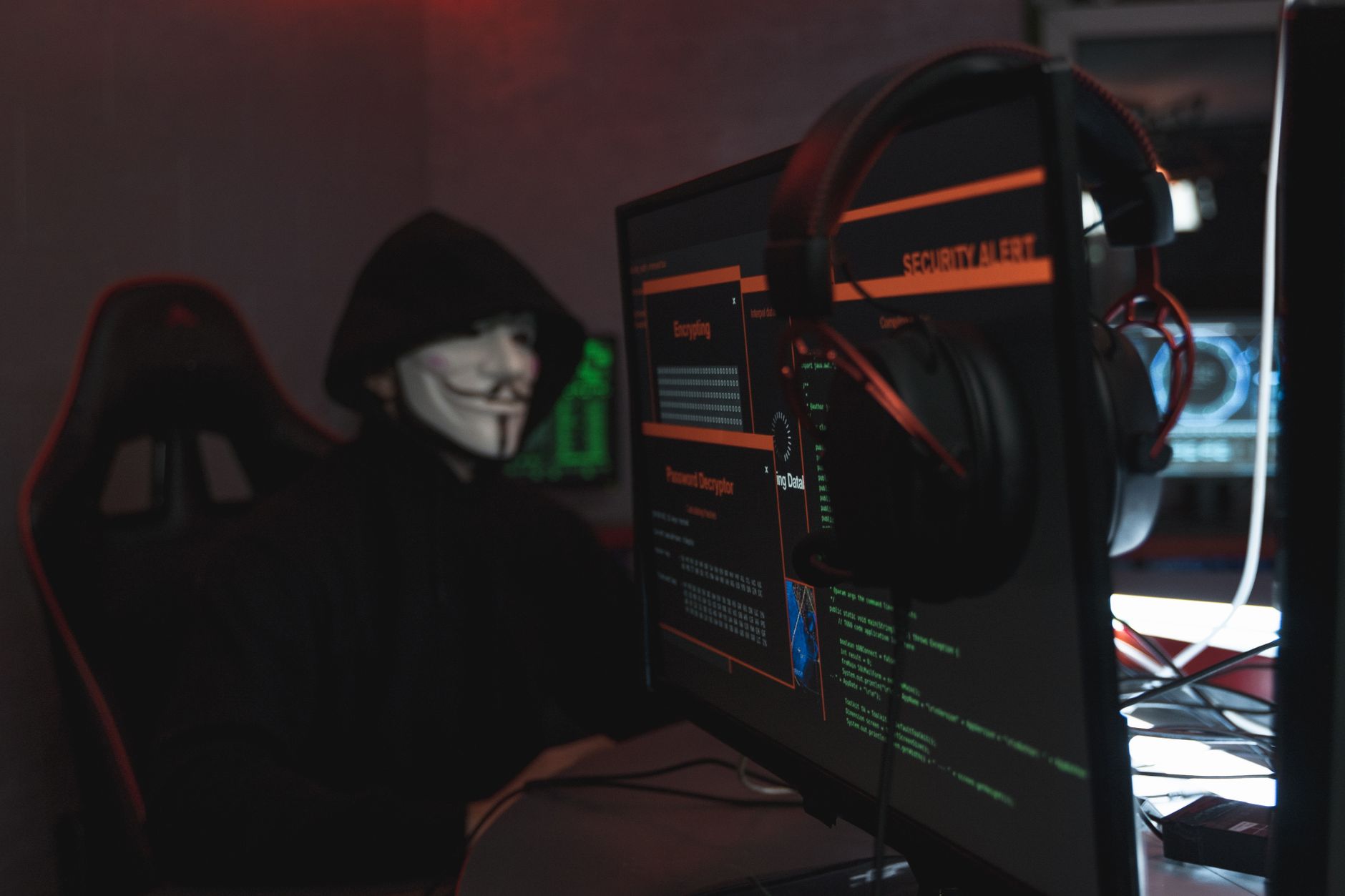
Once established on a system, Banload.JB operates silently in the background, monitoring browser activity and waiting for victims to access financial websites. The trojan employs various stealth techniques to avoid detection by antivirus software, including rootkit capabilities and process injection. Because it's designed specifically for financial theft, infections can result in unauthorized transactions, drained bank accounts, and identity theft if not addressed quickly.
Threat Profile
| Attribute | Details |
|---|---|
| Threat Family | Banload (also called Banker, Bancos) |
| Variant Designation | JB |
| Classification | Banking Trojan, Credential Stealer |
| Platform | Windows (32-bit and 64-bit systems) |
| First Detected | Banload family active since ~2005; JB variant specifics vary |
| Primary Distribution | Email attachments, drive-by downloads, bundled with pirated software, exploit kits |
| Persistence Mechanism | Registry Run keys, scheduled tasks, executable placed in startup folders |
| Key Capabilities | Keylogging, form-grabbing, screenshot capture, browser monitoring, process injection |
| Targeted Data | Banking credentials, credit card numbers, email account logins, cryptocurrency wallet details |
| Network Behavior | Communicates with command-and-control servers to exfiltrate stolen credentials; may download additional payloads |
| Typical File Locations | %APPDATA%, %LOCALAPPDATA%, %TEMP%, random subfolders with GUID-like names |
| Removal Difficulty | Moderate—uses stealth techniques but typically lacks advanced rootkit components found in more sophisticated threats |
How It Spreads
Banload.JB reaches victim computers through several common infection vectors, most of which exploit user trust or lack of technical caution. Email remains the primary delivery mechanism: attackers send messages disguised as legitimate correspondence from banks, shipping companies, tax authorities, or even friends. These emails contain malicious attachments—often ZIP files holding executable files with double extensions like "invoice.pdf.exe" or Office documents with macro scripts that download the trojan when enabled.
Drive-by download attacks also distribute this malware. Victims visiting compromised websites or clicking malicious advertisements may trigger automatic downloads of the trojan, especially if their browser or plugins are outdated. The Banload family has historically been distributed through Brazilian and Latin American banking-themed attack campaigns, but variants appear globally. Software piracy represents another significant vector: cracked programs, key generators, and "free" versions of paid software frequently come bundled with Banload and similar trojans.
Common distribution methods include:
- Phishing emails with ZIP/RAR attachments containing trojan executables
- Malicious Office documents using VBA macros to download and execute the payload
- Compromised websites serving drive-by downloads through exploit kits like RIG or Fallout
- Fake software updates for Flash, Java, or media codecs
- Bundled installers for pirated games, productivity software, or utilities
- Malvertising campaigns on legitimate websites serving malicious ads
- P2P networks and torrent sites where malware is disguised as popular software or media files
What It Does On Your Machine
Upon execution, Banload.JB immediately works to establish persistence and begin its surveillance activities. The trojan copies itself to a hidden location in the user's application data folders, typically with a randomized filename to avoid easy detection. It creates registry entries in the Windows Run keys or establishes scheduled tasks to ensure it launches automatically every time Windows starts. Some variants inject themselves into legitimate Windows processes like explorer.exe or svchost.exe to hide their presence from task manager and simple security scans.
The trojan's primary mission is monitoring financial activity. It hooks into browser processes to capture form submissions on banking websites, recording usernames, passwords, account numbers, and security question answers. Many Banload variants include keylogging functionality that records every keystroke, allowing attackers to capture credentials even on sites the trojan wasn't specifically programmed to target. Screenshot capture is another common feature—the malware periodically takes snapshots of the desktop, especially when banking-related keywords appear in window titles.
Stolen data is transmitted to command-and-control servers operated by the attackers. This communication typically happens over HTTP or HTTPS, sometimes disguised as legitimate web traffic. The exfiltration may occur in real-time as credentials are captured, or in batches at regular intervals. Some Banload variants also function as downloaders, receiving commands to install additional malware like ransomware, cryptocurrency miners, or more advanced banking trojans.
System performance may degrade slightly due to the trojan's monitoring activities, though Banload is designed to remain as inconspicuous as possible. Users might notice increased network activity, unexplained CPU usage by unfamiliar processes, or occasional browser slowdowns. However, many infections proceed without obvious symptoms until the victim discovers unauthorized transactions on their accounts.
Manual Removal — Step by Step
Disconnect From the Internet Immediately
Unplug your Ethernet cable or disable Wi-Fi. Banking trojans transmit stolen credentials in real-time, so cutting network access prevents further data theft. Keep the system offline throughout the removal process except when downloading necessary security tools to a clean device.
Boot Into Safe Mode With Networking
Restart your computer and press F8 repeatedly during boot (or Shift+F8 on newer systems). Select "Safe Mode with Networking" from the menu. On Windows 10/11, you can also hold Shift while clicking Restart, then navigate to Troubleshoot > Advanced Options > Startup Settings > Restart > press 5 for Safe Mode with Networking. This prevents most malware from loading with Windows.
Identify and Terminate Malicious Processes
Press Ctrl+Shift+Esc to open Task Manager. Look for unfamiliar processes, especially those running from %APPDATA% or %LOCALAPPDATA% folders with random names or GUID-like paths. Right-click suspicious processes and select "Open file location" to verify. If the location matches typical Banload patterns, right-click and choose "End task." Note the file path for later deletion.
Remove Persistence Mechanisms
Press Win+R, type "regedit", and press Enter. Navigate to HKEY_CURRENT_USER\Software\Microsoft\Windows\CurrentVersion\Run and HKEY_LOCAL_MACHINE\SOFTWARE\Microsoft\Windows\CurrentVersion\Run. Look for suspicious entries with random names or paths to %APPDATA%/%LOCALAPPDATA% folders. Delete these entries. Also check Task Scheduler (type "taskschd.msc" in Win+R) for unfamiliar scheduled tasks and delete them.
Delete the Trojan Files and Folders
Open File Explorer and navigate to the locations you identified earlier. Typical paths include C:\Users\[YourName]\AppData\Roaming\ and C:\Users\[YourName]\AppData\Local\. Delete any folders with GUID-like names (strings of random letters and numbers in brackets) that contain the trojan executable. Also check the %TEMP% folder and delete suspicious recent files.
Run Malwarebytes or Similar Security Scanner
If you haven't already, download Malwarebytes (from a clean device, transferring via USB if necessary). Install and run a full system scan. Malwarebytes has strong detection for Banload variants and their associated artifacts. Quarantine or delete all detected threats. Consider also running a second-opinion scanner like HitmanPro or Emsisoft Emergency Kit for thoroughness.
Reset Browsers and Check Extensions
Some Banload variants install malicious browser extensions or modify browser settings. Open each browser (Chrome, Firefox, Edge) and check installed extensions—remove anything unfamiliar. Consider resetting browsers to default settings: in Chrome, go to Settings > Advanced > Reset and clean up > Restore settings to original defaults. Repeat for all installed browsers.
Change All Financial Passwords From a Clean Device
Do NOT log into banking or financial accounts from the infected machine until you're certain it's clean. Use a smartphone, tablet, or different computer to change passwords for all banking accounts, credit cards, PayPal, investment accounts, and email. Enable two-factor authentication wherever available. Monitor accounts closely for unauthorized activity and report suspicious transactions immediately.
Reboot and Verify Removal
Restart your computer normally (not in Safe Mode). Run your antivirus/anti-malware scanner again to confirm the system is clean. Check Task Manager for any suspicious processes returning. Verify that the registry entries and scheduled tasks remain deleted. Monitor system behavior for several days—watch for unexpected network activity, browser redirects, or system slowdowns.
Consider Full System Wipe if Critical Data Was Accessed
If you accessed banking accounts after infection but before discovery, or if you're unsure when the trojan first installed, the safest approach is backing up important files (documents, photos—not executables) and performing a complete Windows reinstallation. Banking trojans can install additional hidden components, and absolute certainty requires a clean slate.
Prevention
- Maintain updated antivirus software with real-time protection enabled. Free solutions like Windows Defender are adequate if kept current, but consider paid options like ESET, Bitdefender, or Kaspersky for enhanced banking protection features.
- Never enable macros in email attachments from unknown senders. Legitimate businesses rarely send macro-enabled documents. If you receive an unexpected invoice or document, verify with the sender through a separate communication channel before opening.
- Keep Windows and all software updated with the latest security patches. Enable automatic updates for Windows, browsers, Adobe Reader, Java, and other commonly targeted applications. Exploit kits rely on outdated software to deliver trojans.
- Use dedicated security for online banking. Many banks offer browser extensions or dedicated apps with enhanced security. Consider using a separate browser exclusively for financial activities, or investigate "banking mode" features in security suites like Bitdefender or Kaspersky.
- Be extremely cautious with email attachments and links. Hover over links to see the actual URL before clicking. Be suspicious of ZIP files, executables, or Office documents from unexpected sources. When in doubt, contact the supposed sender directly using contact information you look up independently.
- Avoid pirated software and dubious download sites. Free cracks, key generators, and pirated games are among the most common malware vectors. Use official sources for software downloads, and remember that if something seems too good to be true (professional software for free), it probably contains malware.
- Implement network-level protection. Consider DNS filtering services like Cloudflare's 1.1.1.1 for Families, OpenDNS, or Quad9, which block known malicious domains. A good router with built-in security features adds another layer of protection.
- Monitor financial accounts regularly. Enable transaction alerts through your bank's app or email notifications. The sooner you detect unauthorized activity, the less damage can occur and the faster you can respond.
Bring It In
Banking trojan infections require immediate professional attention due to the financial risk involved. While the manual removal steps above can work, any mistake leaves your financial data vulnerable. At Computer Repair Roswell, we've handled hundreds of Banload infections and similar banking malware. We use professional-grade tools unavailable to consumers, perform thorough registry and filesystem analysis to find hidden components, and verify complete removal through behavioral monitoring. Most importantly, we can determine whether the infection accessed financial data and advise on appropriate next steps with your bank.
Our shop is located right here in Roswell, Georgia, and we offer same-day service for malware emergencies. Call us at (770) 695-6444 to describe your situation, or bring your computer directly to our shop. We'll assess the infection, provide an honest estimate, and get your system cleaned and secured—typically within 24 hours. Don't gamble with your financial security. Let experienced professionals handle the removal so you can get back to using your computer safely.