The "Official Communication Service Update Required" email scam is a phishing campaign that impersonates legitimate corporate communication platforms to trick employees and business users into surrendering their email credentials. These messages typically arrive with urgent subject lines claiming your organization's email system requires immediate verification or you'll lose access to critical messages. The scam preys on workplace anxiety about missing important communications and the trust employees place in IT department notifications.
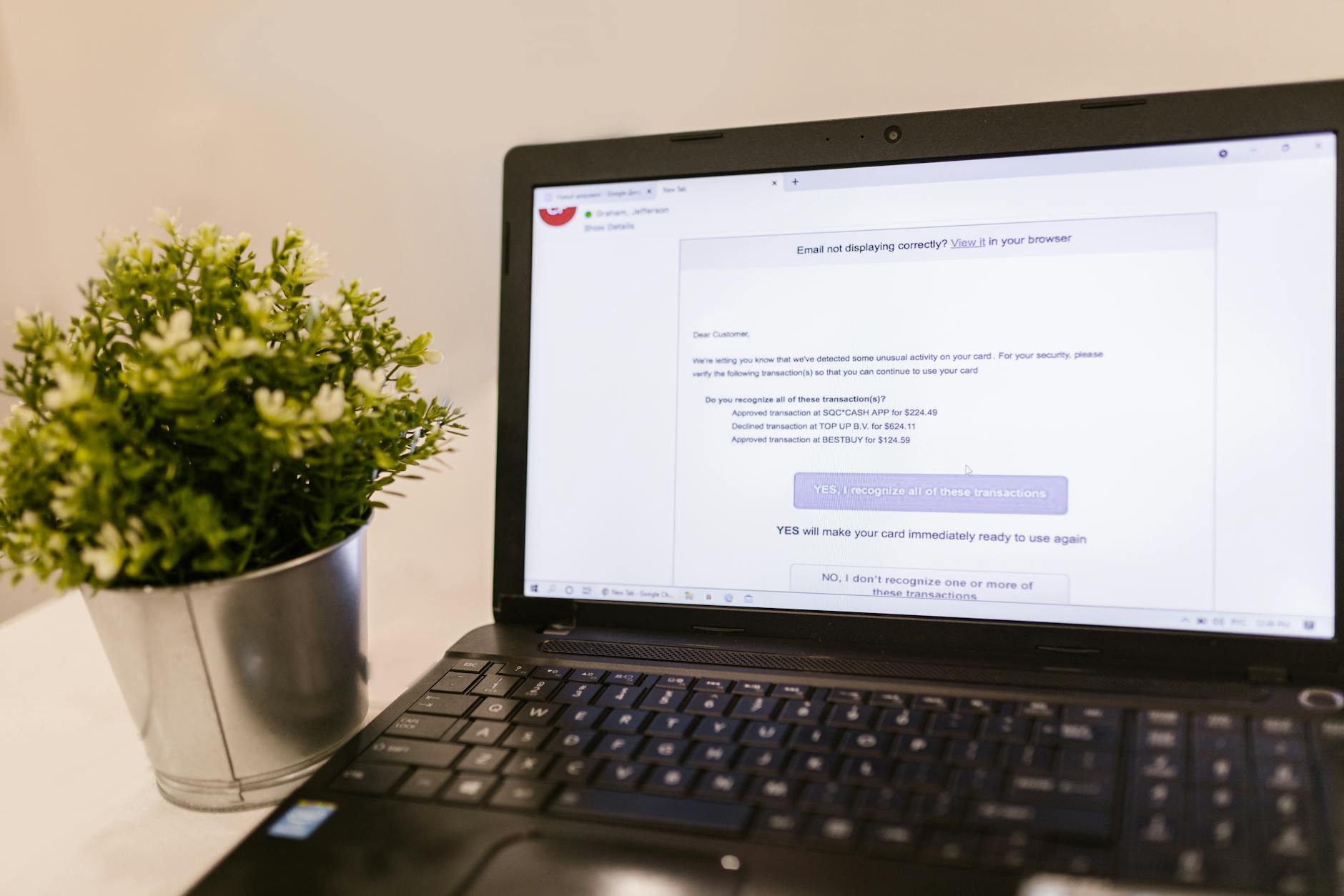
Unlike malware that installs files on your computer, this is a credential harvesting attack. The threat actors behind it want your username and password, which they'll use to access your real email account, steal sensitive data, send additional phishing emails to your contacts, or sell your credentials on underground forums. The danger extends beyond your personal inbox — compromised business email accounts frequently lead to wire fraud, data breaches, and ransomware infections throughout an organization.
Threat Profile
| Attribute | Details |
|---|---|
| Threat Type | Phishing scam, credential harvester, business email compromise (BEC) precursor |
| Target Platforms | All email users (platform-agnostic); primarily targets Microsoft 365, Google Workspace, and corporate email systems |
| Distribution Method | Mass email campaigns with spoofed sender addresses, compromised email accounts, bulk mailing services |
| Social Engineering Tactic | Urgency (imminent account closure), authority (impersonates IT/admin), fear (loss of access to messages) |
| Phishing Page Characteristics | Mimics legitimate login portals; hosted on compromised WordPress sites, free hosting services, or newly registered domains with SSL certificates |
| Credential Destination | Stolen credentials transmitted to attacker-controlled servers, typically via PHP scripts or third-party form handlers |
| Secondary Payloads | May redirect to malware downloads after credential capture; some variants install browser extensions or remote access tools |
| Typical Indicators | Generic greetings, misspelled domains in links, grammar errors, mismatched sender addresses, urgency language, non-standard login pages |
| Campaign Sophistication | Ranges from crude templates to sophisticated replicas with company branding; increasingly uses legitimate cloud services to bypass filters |
| Follow-up Attacks | Account takeover, internal phishing to coworkers/clients, invoice fraud, tax document scams, malware distribution |
| Detection Difficulty | Moderate to high; well-crafted versions bypass spam filters by using legitimate infrastructure and minimal suspicious content |
| Removal Requirement | No system infection to remove; requires password reset, security audit of email account, and potential organizational incident response |
How It Spreads
This phishing scam spreads through mass email campaigns that cast a wide net across businesses and organizations. The attackers obtain email address lists through data breaches, purchased contact databases, web scraping of company websites, and previous phishing campaigns. They craft messages designed to look like they come from your IT department, your email service provider, or a corporate communications platform. The sender address often appears legitimate at first glance but uses subtle misspellings (like "noreply@yourcompany-support.com" instead of your actual domain) or display name spoofing to hide the real origin.
The emails themselves follow a predictable pattern: they claim there's an urgent issue with your email service that requires immediate action. Common pretexts include security updates, storage quota issues, undelivered messages requiring verification, or mandatory password reconfirmation. The message contains a button or link with text like "Verify Account," "Review Messages," or "Update Service" that leads to a fake login page designed to capture whatever credentials you enter.
The phishing pages these scams use are increasingly sophisticated. Many are hosted on compromised legitimate websites — small business WordPress sites with outdated plugins make ideal platforms because they already have valid SSL certificates and established domain reputations that help them slip past security filters. Others use newly registered domains that closely mimic real services, or they abuse legitimate cloud platforms like Google Sites, Azure, or SharePoint to host their fake login forms, leveraging the trusted reputation of these services.
- Spoofed email campaigns with forged sender addresses appearing to come from IT departments or service providers
- Compromised email accounts used to send phishing messages to contacts, making them appear more trustworthy
- Chain reactions where one successful phish leads to hundreds more sent from the victim's account
- Targeted campaigns aimed at specific companies after reconnaissance of their email systems and naming conventions
- Seasonal timing exploiting periods of high email traffic (tax season, holidays, fiscal year-end) when users are less vigilant
- Mobile exploitation targeting users on smartphones where it's harder to verify URLs and spot inconsistencies
What It Does On Your Machine
The "Official Communication Service Update Required" scam doesn't install traditional malware on your computer — its goal is simpler and in some ways more dangerous. When you click the link in the phishing email, you're taken to a fake login page that looks remarkably similar to your real email provider's login screen. It might have your company's logo, the correct color scheme, and professional-looking design elements. As soon as you enter your email address and password and click submit, those credentials are transmitted to the attacker's server. You might be redirected to your real inbox afterward, making you think the "update" worked, while in reality your account security has been completely compromised.
Once the attackers have your credentials, they log into your real email account — usually within minutes. Their first actions are typically to create email forwarding rules that silently copy all your incoming messages to an external address, allowing them to monitor your communications without your knowledge. They review your sent mail and contacts to understand your relationships and identify high-value targets for follow-up attacks. They search for sensitive information: financial documents, tax records, customer data, business contracts, or anything they can exploit or sell.
The compromised account then becomes a weapon against others. Because emails from your legitimate account come from a trusted source, they have much higher success rates than cold phishing attempts. The attackers send carefully crafted messages to your coworkers requesting wire transfers, to your clients with fake invoices, or to your entire contact list with malware-laden attachments. These secondary attacks often happen during off-hours to delay detection. In business environments, a single compromised account can lead to business email compromise (BEC) fraud costing tens or hundreds of thousands of dollars.
Some variants of this scam go beyond simple credential theft. After capturing your password, the fake page might prompt you to download a "security certificate" or "email configuration file" that's actually malware — typically information stealers, remote access trojans, or banking trojans. These follow-up payloads represent a escalation from account compromise to full system infection. The terminal block below shows what artifacts you might find if the phishing campaign deployed secondary malware after credential capture:
Manual Removal — Step by Step
Immediately Change Your Password from a Trusted Device
If you entered your credentials on the phishing page, assume your account is compromised. Using a different device than the one where you submitted credentials (or at minimum a different browser), go directly to your email provider's official website by typing the URL manually — do not use any links from the suspicious email. Log in and change your password to a strong, unique password you've never used before. Make it at least 12 characters with a mix of uppercase, lowercase, numbers, and symbols.
Enable Two-Factor Authentication
While logged into your account from a trusted access point, immediately enable two-factor authentication (2FA) or multi-factor authentication (MFA) if your email service supports it. This adds a second verification step beyond your password — typically a code sent to your phone or generated by an authenticator app. Even if attackers have your password, they won't be able to access your account without this second factor. For business accounts, contact your IT department to enable this if you can't do it yourself.
Check for Unauthorized Forwarding Rules and Filters
Attackers commonly set up email forwarding to silently receive copies of your incoming messages. In your email settings, look for sections labeled "Forwarding," "Filters," "Rules," or "Automatic Replies." Delete any forwarding addresses you don't recognize or didn't create yourself. Check filter rules for anything that automatically moves, deletes, or forwards messages — particularly rules that hide emails from your inbox. In Gmail this is under Settings > Forwarding and POP/IMAP; in Outlook/Microsoft 365 check Settings > Mail > Forwarding and Settings > Mail > Rules.
Review Recent Account Activity and Sent Messages
Most email services provide activity logs showing recent login locations and IP addresses. Look for logins from unfamiliar locations or countries. Check your Sent folder for any messages you didn't write — attackers often send phishing emails to your contacts or requests for money transfers. If you find unauthorized sent messages, you'll need to warn those recipients immediately. Also review your Deleted Items or Trash folder, as attackers sometimes hide evidence there.
Revoke Access to Third-Party Applications
Some phishing attacks trick you into granting OAuth permissions to malicious applications that can access your email without needing your password. In your account security settings, find the section for "Connected apps," "Third-party access," or "App passwords" and revoke access for any applications you don't recognize or use. In Google accounts this is under Security > Third-party apps with account access; in Microsoft accounts check Security > App passwords and Permissions.
Scan Your Computer for Secondary Malware
If you downloaded any files from the phishing page or clicked additional links after entering credentials, your computer may be infected with malware. Download and run Malwarebytes Free from the official malwarebytes.com website. Perform a full system scan and quarantine or remove any threats it detects. Follow this with a scan using your regular antivirus software. If you suspect a serious infection, restart in Safe Mode with Networking before scanning to prevent malware from interfering with detection.
Check for Persistence Mechanisms if Malware Was Downloaded
If you downloaded and ran an executable file from the phishing page, check for persistence. Press Windows+R, type "shell:startup" and press Enter to open your Startup folder — delete any suspicious shortcuts. Next, press Windows+R again, type "taskschd.msc" and press Enter to open Task Scheduler. Look through the task list for anything that runs executables from suspicious locations like %APPDATA%, %TEMP%, or %LOCALAPPDATA% with random folder names. Delete suspicious scheduled tasks by right-clicking and selecting Delete.
Change Passwords for Other Accounts
If you used the compromised password on any other websites or services, change those passwords immediately as well. Attackers commonly test stolen credentials across multiple platforms — a practice called credential stuffing. Prioritize financial accounts, social media, and other email accounts. Use unique passwords for each service. Consider using a reputable password manager to generate and store strong, unique passwords for all your accounts going forward.
Notify Your IT Department or Email Provider
If this is a work or school email account, immediately report the incident to your IT department or security team. They need to monitor for follow-up attacks against your colleagues and may need to implement additional security measures. For personal accounts from major providers like Gmail or Outlook, report the phishing attempt through their abuse reporting mechanisms — this helps them block the phishing sites and warn other users. Provide the full email headers and the URL of the fake login page if you still have them.
Monitor Your Accounts and Credit
For the next several months, closely monitor your email account, financial accounts, and credit reports for signs of identity theft or fraud. Watch for unauthorized transactions, new accounts opened in your name, or suspicious activity. If your email contained sensitive information like Social Security numbers, tax documents, or financial records, consider placing a fraud alert or credit freeze with the major credit bureaus. The sooner you detect secondary fraud, the easier it is to contain and reverse.
Prevention
- Verify requests independently — If you receive an email claiming to be from your IT department or email provider requesting credentials or urgent action, contact them through a known phone number or by walking to their office. Never use contact information provided in the suspicious email itself. Legitimate IT departments will never ask for your password via email.
- Examine URLs before clicking — Hover your mouse over links to see the actual destination URL in the bottom corner of your browser before clicking. Look for misspellings, extra characters, or unusual domains. The legitimate Microsoft login page is login.microsoftonline.com, not login-microsoftonline-secureupdate.com. If you're on mobile where hovering isn't possible, long-press the link to preview the destination.
- Look for signs of phishing — Generic greetings like "Dear User" instead of your name, urgent language creating artificial time pressure, grammar and spelling errors, and mismatched branding are all red flags. Real service notifications from major providers are professionally written and don't threaten immediate account closure without proper warning.
- Enable two-factor authentication everywhere — Make 2FA or MFA mandatory on your email account, banking accounts, social media, and any service that supports it. Even if you somehow give away your password, attackers can't access your account without the second factor. This single step defeats the vast majority of credential phishing attacks.
- Use unique passwords for every service — If attackers steal your email password, they'll immediately try it on banking sites, social media, and other services. Using unique passwords for each account contains the damage. A password manager makes this practical by generating and storing complex unique passwords for you.
- Keep software and browsers updated — Modern browsers include phishing and malware protection that warns you when you visit known malicious sites. These protections only work if you keep your browser updated. Enable automatic updates for your operating system, browser, and security software to ensure you have the latest defenses.
- Be skeptical of urgency — Scammers create artificial urgency to prevent you from thinking critically. Legitimate companies don't threaten to close your account within hours without warning. If an email demands immediate action, that's the exact moment to slow down, verify independently, and examine it carefully for phishing indicators.
- Use email security features — Many email providers offer advanced protection against phishing. In Gmail, enable "Warn before clicking links" and review the security checkup recommendations. In Microsoft 365, administrators can enable ATP Safe Links and ATP Safe Attachments. These features analyze links and attachments in real-time before you access them.
Bring It In
If you fell for this scam and aren't confident handling the cleanup yourself — especially if you suspect secondary malware was installed — bring your computer to our Roswell shop. We'll thoroughly scan your system for info-stealers, remote access trojans, and other payloads that commonly follow credential theft. We'll check for persistence mechanisms in places most users never look, verify your browser extensions haven't been compromised, and make sure no backdoors were installed. More importantly, we'll walk you through securing your accounts properly and setting up protections that actually work.
For business owners dealing with a compromised employee account, we offer incident response services beyond basic malware removal. We can help you assess what data might have been exposed, identify whether other accounts were compromised in follow-up attacks, and implement security measures to prevent similar incidents. Time matters with these situations — the sooner you address a credential compromise, the less damage the attackers can do with your stolen information. Call us at (770) 674-6523 or stop by our shop at 1950 Vaughn Road in Roswell. We're here to help you recover and protect yourself going forward.